









No, not all USB-C cables transfer data. USB-C is a reversible connector shape, not a data speed standard, so a cable's performance depends on the USB, USB4, or Thunderbolt standard the cable supports. Some USB-C cables are charge-only cables, while others can carry data, video, and power when the cable and device support those functions. Check the cable specification before using one for file transfer, a monitor, a dock, or fast charging.
Why do USB-C cables have different data transfer limits?
USB-C only describes the plug shape. The cable's actual speed depends on its wiring, supported protocol, and the ports on both devices.
The basics of USB-C
USB-C, also called USB Type-C, is a reversible 24-pin connector. The plug has a small rounded shape and works in either direction, so users do not need to check which side faces up.
USB-C can carry power, data, audio, or video, but only when the cable and device support those functions. USB-C does not define speed or wattage by itself. USB 3.x, USB4, Thunderbolt, and USB Power Delivery set those limits.
This connector is common on phones, tablets, laptops, external drives, monitors, and docking stations. A USB-C cable can charge a device, transfer files, connect a display, or combine power and data when the cable specification allows it.
This is why two USB-C cables can look the same but behave differently. One cable may only charge a phone, while another may transfer files, connect a display, or power a laptop.
Data Transfer and Charging: The Dual Role of USB-C
Playing music and video, synchronizing data, and charging are all possible with USB-C. For instance, the iPhone 15 features a USB-C port that enables connection and charging of a wide range of gadgets, such as screens, external storage devices, Macs, iPads, and AirPods Pro (2nd generation). Additionally, USB-C can send and receive electricity, so it may be used to charge a smartphone or laptop.
Can USB-C transfer data? USB Power Delivery can carry up to 240W through a full-featured USB-C cable under the Extended Power Range standard. USB4 controls data and display bandwidth, not charging wattage. Most devices restrict this to 96–100 watts for practical reasons.
When paired with the USB Type-C connection, it has shown to be a revolutionary advance, enabling devices to send data and power simultaneously while the converter adapts to the device's power needs. Every USB cable has two sets of wires to do this. While the other group conveys the data signals, the first set carries the current. The typical USB 2.0 connection has four metal strips inside of it. The power supply's positive and ground are represented by the outer two strips. The USB-C PD charger recognizes the connected item and knows how much power to provide it to charge as quickly as possible, regardless of how big or little it is. This guarantees quick charging without providing excessive power that might harm circuits. USB-C and USB Type-C are the same connector. Data speed can range from USB 2.0 rates to USB4 80Gbps, depending on the cable, port, and device.
In addition, it can transmit audio and supply Ultra-HD 4K video resolution at up to 100 W of power to devices. The 24-pin USB-C connector, which replaced earlier USB connectors, is found on almost all contemporary devices, including MacBooks and iPads made by Apple. USB-C, also known as USB Type-C, is a 24-pin connection that replaces earlier USB connectors. It can transfer data, including audio and video, and is used to power multiple displays or store backups on external drives. It is not a protocol. It can also send and receive electricity, so you may use it to charge your phone or laptop.
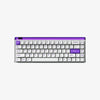
For a keyboard setup, choose a USB-C cable that lists the connector and data support your keyboard needs. Do not use a decorative cable for displays, docks, or high-power charging unless the product page lists those ratings.
So it is Made from durable double-sleeves. And the cables are both durable and flexible. So you can find their versatile connectivity. Each one accommodates different connectors.
Types of USB-C Cables

Charging vs. Data Transfer Cables
This section compares USB-C charging cables with USB-C data cables. It is true that certain USB-C cables are made solely for charging rather than data transfer. Frequently referred to as "charge-only" USB cables. They are built with an emphasis on power conductors for charging rather than data transmission lines. USB C cables are incredibly adaptable since they may be used for a broad range of tasks, including data transfer, charging, and video output. You can only charge your phone or other electronic device via charging lines. Devices cannot exchange information with one another. Data cables, on the other hand, can be used to transmit data as well as power between electronic equipment. It is true that certain USB-C cables are made solely for charging rather than data transfer. Frequently referred to as "charge-only" USB cables. They are built with an emphasis on power conductors for charging rather than data transmission lines.
Are All USB-C Cables Data Cables?
Are all usb c cables data cables? Not every USB-C cable is a data cable, though. Certain USB-C cables lack data transmission lines and are just intended for charging. These cables are unable to detect external devices or transfer data. Do not rely on cable color alone. Check the package, product page, USB-IF logo, or tested transfer behavior. Nonetheless, the majority of USB cords provide data transfer and charging capabilities.
Do All USB-C Cables Transfer Data?
The Variability in USB-C Cable Functionality
Do all usb cables transfer data? Not all USB C cables support the data transfer process. Certain USB-C cables lack data transmission lines and are just intended for charging. Compared to standard USB connections, these cables are mainly used for powering devices and accelerating the charging process. Data speed depends on the cable rating, port standard, connected device, and file-transfer mode. Certified high-speed cables use wiring and shielding rated for faster signals, which helps reduce dropouts during file transfers or display output. Device Interoperability: For best performance, the devices at each end of the USB-C connection must support the same data transfer speeds. Regardless of the capabilities of the connection, if one device is restricted to a lower transmission rate, it will bottleneck the entire speed.
Identifying Data Transfer Capable USB-C Cables
To find out if your USB-C cable enables data transfer, you may check your operating system (OS). For instance, a generic message stating that there is "something" wrong with the USB cord would appear on Windows 10 and 11. A feature of Google's ChromeOS 102 lets you know which USB-C connectors are incompatible with it. A multimeter can also be used to check for resistance or continuity. A USB product that has earned USB-IF certification has complied with the organization's stringent performance, quality, and environmental requirements. Additionally, the certification guarantees that the product complies with the USB specification set out by the USB-IF and is compatible with a range of USB hosts and devices. In addition to enabling manufacturers to utilize the USB-IF mark on their goods or packaging, this fosters a seamless user experience.
Performance Considerations

USB-C Data Transfer Speeds
Data transmission rates using USB-C cables span from 480 Mbps (USB 2.0) to 20 Gbps (USB 3.2 Gen 2x2). Up to 5 Gbps or 10 Gbps may be achieved with USB 3.1 Gen 1 (also known as USB SuperSpeed) and Gen 2 (also known as USB SuperSpeed+). Additionally, 40 Gbps (USB4) and 80 Gbps (USB4 V2) connections may be made with USB-C cables. The supported data transfer rates are frequently noted by the manufacturer on the device specs or cable packaging. To choose a faster cable, look for listed speeds such as 5Gbps, 10Gbps, 20Gbps, 40Gbps, or 80Gbps on the packaging or product page.
To find out the supported data transfer rates, you may also look at the product specs or the packaging of the cable. Indicators such as "USB 3.0" or "USB 3.1 Gen 2" suggest that the cable is capable of handling higher transfer speeds. Additionally, you may verify whether USB protocols are supported by your devices by visiting their official websites or user manuals. Match the cable rating with the device and port specifications, because the slowest part sets the final speed.
Compatibility and Connectivity Issues
Typical problems with data transmission using USB-C include:
Common USB-C problems include a loose connection, an unrecognized device, a phone that only charges, or a monitor that stays blank because the cable lacks the needed data or video support.
Unsupported or not recognized USB device: On iOS, Android, Mac, and PC, the connection is loose: There's a chance the USB-C cable is loose or won't click into place.
Verify compatibility: Verify that the cable is compatible with your devices.
Select the appropriate cable: Take into account the required data transmission rates and speed as well as the cable's length. For instance, USB 3.0 connections have a maximum data transmission speed of 5 Gbps, but USB 1.0 and 1.1 cables have a maximum speed of 12 Mbps. Clean the connection by using a compressed air duster to carefully remove any dust or debris after using a flashlight to search for it. Use compressed air to clear dust from the port, and avoid sharp tools that can damage the connector.
Make sure the connection is made correctly: Verify that the cable is directly plugged into the appropriate USB-C port on your computer.
FAQs
Can all USB-C cables transfer data, or are some only for charging?
No. Some USB-C cables are charge-only cables, so a USB-C plug does not prove file transfer support. A data-capable USB-C cable needs data lines and a supported USB protocol. If a computer cannot detect a phone, keyboard, or external drive, the cable may only be carrying power.
How can I tell if my USB-C cable supports data transfer?
Check the cable packaging, product page, or printed markings for USB 3.x, USB4, Thunderbolt, or a listed speed such as 5Gbps, 10Gbps, 20Gbps, 40Gbps, or 80Gbps. If the cable lists no specification, test the USB-C cable with a known data device. A charging icon alone does not confirm data transfer.
Are there USB-C cables that offer faster data transfer speeds than others?
Yes. USB-C data speeds can range from 480Mbps on USB 2.0 cables to 80Gbps on USB4 80Gbps certified setups. Actual speed depends on the cable, both devices, and the port protocol. A fast cable cannot exceed the slowest device or port in the chain.
Does the length of a USB-C cable affect its data transfer capabilities?
Yes. Shorter USB-C cables usually hold high-speed data signals more reliably because the signal has less distance to travel. Longer cables can still charge, but long passive cables may lose speed or fail with displays and external drives. For longer runs, choose a certified cable rated for the speed you need.
Why does my USB-C cable charge my phone but not show file transfer?
Your phone may only charge because the USB-C cable is charge-only or the phone uses charging-only USB mode. Use a known data cable, wake the phone screen, and approve File Transfer or MTP when the prompt appears. If no prompt appears, test another port and cable before changing phone settings.
Can one USB-C cable run a monitor or dock if the cable already charges my laptop?
Not always. A USB-C cable can charge a laptop without carrying video to a monitor or dock. Display output needs the laptop port, the dock or monitor, and the cable to support DisplayPort Alt Mode, USB4, or Thunderbolt. If the screen stays blank, use a cable listed for video output or 40Gbps.