







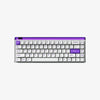


Choose Bluetooth if you switch between devices often. Choose 2.4 GHz wireless if you want lower-latency input at a fixed desk. They are both modern, reduce cable clutter, and are compatible with a wireless mechanical keyboard setup. Both reduce cable clutter, but the better option depends on how you work, play, and move between devices.
Pros and Cons of Bluetooth Keyboards
Bluetooth is everywhere. It is built into your laptop, your phone, your tablet, and even your TV, making the Bluetooth keyboards not only easy to pair but also to carry around. It is good to understand the trade-offs before examining specific use cases.
Bluetooth keyboards pair with laptops, tablets, phones, and TVs without a USB receiver. They are also very handy when you are commuting. Bluetooth, however, brings with it a bit of latency compared to 2.4 GHz wireless, and the difference can be felt in tight gaming reactions or typing spurts. RGB lighting can also shorten battery life.
Bluetooth is appropriate in situations where flexibility and ease of use are more important than speed.
Pros and Cons of 2.4 GHz Wireless Keyboards
In the case that Bluetooth is convenient, 2.4 GHz wireless is more responsive. 2.4 GHz wireless uses a USB receiver, so the connection usually feels closer to wired input than Bluetooth. This is the choice that gamers typically prefer, and it works well with professionals seeking typing options with great speed and requiring all their press keys to be detected instantly.
Reliance on a dongle is the trade-off. Losing the receiver can block wireless use. Compatibility is also narrower, as phones and tablets do not work with the 2.4 GHz receivers used by keyboards. However, when speed, stability, and performance are important, 2.4 GHz will prevail.
The Real Difference: Bluetooth vs. 2.4 GHz Wireless
Bluetooth wins on device flexibility. 2.4 GHz wins on lower-latency wireless input. A tri-mode keyboard gives you both, so you can use Bluetooth on the move and 2.4 GHz at your desk. But when you are commuting with a laptop, tablet, and phone, Bluetooth provides some freedom without carrying an additional device.
Both solutions are excellent if the keyboard is provided with tri-mode connectivity. Then you can alternate depending on what you are doing at a particular time.
Choose Your Best Keyboard
Now that you have the differences, let us see what really suits your everyday life. Every use case is biased toward either a specific kind of wireless connection or, more significantly, a built-in wireless keyboard that fits that workflow.
For Gamers

Gaming is the one place where Bluetooth is easiest to outgrow. For wireless play, choose 2.4 GHz because the receiver connection usually gives lower-latency input than Bluetooth.
If you decide a cable is acceptable, a wired Hall Effect keyboard such as MelGeek MADE68 Pro is the safer MelGeek gaming angle because MADE68 Pro does not support Bluetooth or 2.4 GHz wireless. Its compact 65% layout keeps essentials close, while the MADE modular design and vivid RGB let you dial in a look that matches your battlestation.
[product=made68-pro|variants=Purple / US,Purple / Others,Purple / CA,Pink / US,Pink / Others,Pink / CA]
Wired Hall Effect gaming keyboard with Rapid Trigger, Snap Tap, and 8,000Hz polling.
[/product]
MelGeek's magnetic gaming keyboards focus on wired Hall Effect input, Rapid Trigger, and adjustable actuation. Most gamers will lock into 2.4 GHz for the fastest response, but the extra modes keep your setup flexible across devices. With deep per-key tuning and customizable aesthetics, you can build a board that feels and looks perfectly tuned to your game.
For Office and Work-From-Home Users
It must be reliable, quiet, and comfortable when doing office work through long typing hours. A wireless mechanical keyboard with Bluetooth and 2.4 GHz is the most preferred model by many workers who can use it to move between devices based on their operations. Both connections are good in case you include Zoom meetings, documents, spreadsheets, or type a lot in your workflow.
Comfort and portability are important factors when it comes to a good office setup, rather than the type of connection. In that case, small-sized layout keyboards or minimal profile keyboards are likely to alleviate fatigue.
MelGeek O2 fits this office setup when the reader wants mechanical typing without giving up multi-device flexibility. O2 supports Bluetooth, 2.4 GHz, and USB-C, while the low-profile design keeps the desk setup lighter. Similar to air, it is necessary but comes easily, blending in with your creative flow. It is sleek, light, and fitted in Mac layouts, which is helpful considering that you may use a MacBook and yet enjoy the option of having mechanical switches.
[product=o2-tri-mode-wireless-mechanical-keyboard|variants=O2 for Mac / Others,O2 for Mac / US,O2 for Mac / EU,O2 / Others,O2 / US,O2 / EU]
Mac-first low-profile typing with Bluetooth, 2.4G, and USB-C.
[/product]
It is compatible with Bluetooth, 2.4 GHz, and USB-C, thus allowing quick switching between connection modes. Kailh Sunshine low-profile switches give a softer typing feel, while the 2500mAh battery supports long work sessions. Snap-on magnetic feet adjust the typing angle for different desk setups.

For Students and On-The-Go Setups
Students usually need portability more than gaming response. Bluetooth is the better fit for libraries, tablets, and shared study spaces because Bluetooth works without a receiver.
For People Who Use Multiple Devices
When you regularly switch between laptops, tablets, and phones, you should use Bluetooth, which allows you to pair with a number of devices simultaneously without losing a dongle. A tri-mode wireless mechanical keyboard adds 2.4 GHz for desk work, so you do not have to choose one connection for every situation.
O2 supports multi-device switching and can pair with up to eight devices. An example of a keyboard, such as the O2, shows how simple it is to switch between up to eight devices. To multitaskers, that in itself can save a lot of time.
Conclusion
Bluetooth has its advantages as well as 2.4 GHz wireless. Bluetooth is handy when you have to switch equipment, whereas 2.4 GHz seems faster and more reliable for playing games or doing job-specific work. If you do both, a tri-mode wireless mechanical keyboard is a clean fit because Bluetooth, 2.4 GHz, and USB-C cover different parts of the same routine.
The MelGeek O2 Low-Profile Mechanical Keyboard can be a better choice if you want something lighter, quieter, and easier to carry. Choose the MelGeek keyboard that suits your real work style; selecting the connection type is the easiest aspect of the choice.
FAQ About Bluetooth vs. 2.4 GHz Keyboards
Is bluetooth good enough for gaming?
Bluetooth is good enough for casual gaming, but 2.4 GHz wireless is the safer choice for competitive games. Bluetooth works across more device types, not for the lowest possible input delay. In fast shooters, extra delay can make movement, counter-strafing, or repeated key presses feel less predictable.
Is it worth getting a wireless keyboard?
Yes, a wireless keyboard is worth it if cable clutter, flexible desk placement, or device switching slows down your setup. The safest pick is a tri-mode keyboard because Bluetooth covers tablets and laptops, while 2.4 GHz handles lower-latency desk use. Skip wireless only if you never move the keyboard or want pure wired simplicity.
What is the average lifespan of a wireless keyboard?
A wireless mechanical keyboard usually lasts 3 to 7 years, depending on battery health, charging habits, build quality, and switch wear. Hot-swappable switches and replaceable keycaps can extend daily usability, but a tired battery or damaged USB receiver can shorten the practical lifespan before the keyboard body wears out.
Why does my 2.4 GHz wireless keyboard still feel laggy?
2.4 GHz keyboard lag usually comes from receiver placement, distance, low battery, or local wireless interference. Move the USB receiver closer to the keyboard with an extender, keep the receiver away from metal desk parts, and test the keyboard in wired mode. If wired mode feels clean, the wireless path is the likely issue.
Does Bluetooth or 2.4 GHz use more keyboard battery?
No connection type wins battery life for every keyboard because wireless keyboard battery life depends on RGB brightness, polling rate, sleep settings, battery size, and wake frequency. Bluetooth often suits battery-first use, while 2.4 GHz often suits response-speed use. Turn RGB down first because backlighting can drain power faster than normal typing.
Is Bluetooth or 2.4 GHz safer for typing passwords?
Bluetooth and 2.4 GHz keyboards can both be safe for normal password typing when the keyboard uses modern pairing, encryption, and trusted firmware. Security depends more on the exact keyboard and receiver than the connection label. For shared offices or sensitive work, avoid unknown receivers, update firmware, and use wired mode when possible.